
I’ll be honest with you… I hate using Canva.
I really do. Design work has never really been my thing. If something needs to look good, I usually hand it off to my long-suffering wife.
That said, Canva is very versatile and excellent for creating cool designs, graphics, etc.
Canva has been loading the platform with AI tools, and now even someone like me can actually get things done without needing to bother her every five minutes.
Though I still do. Just because I’m that kind of guy.
Anyway, I’ve put together a playlist of training videos that show you how to use Canva’s AI features properly… before you end up begging your spouse to fix your graphics like I do.
Quick Clarification
Just like with the WarriorPlus training I shared before… I didn’t create this playlist.
The videos were created by Charles Harper, and as always, he has done a good job walking through the different Canva AI features in a way that’s easy to follow.
I have the rights to share the training here, and it’s perfect for marketers who want to understand Canva’s AI features without spending hours clicking around the interface trying to figure things out.
How to Watch the Training
Click the link below to access the training. You can watch all the videos on your own time, at your own pace.
Once you click on the link, you’ll see this playlist…
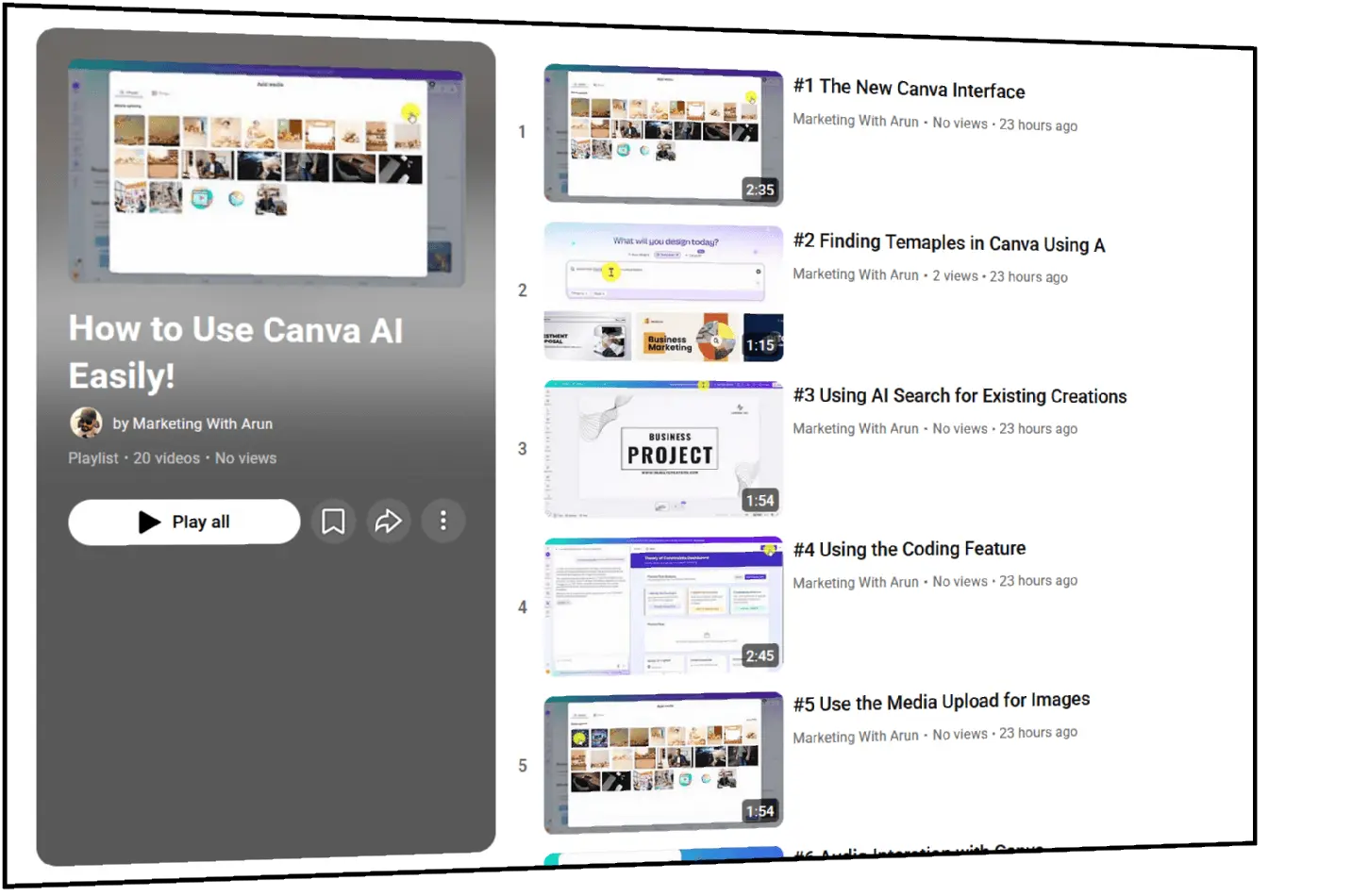
Video breakdown
Here’s the full list of videos so you know exactly what’s covered:
- 01 – The New Canva Interface
- 02 – Finding Templates in Canva Using AI
- 03 – Using AI Search for Existing Creations
- 04 – Using the Coding Feature in Canva
- 05 – Uploading Images with Media Upload
- 06 – Audio Interaction with Canva
- 07 – Free vs Paid Canva AI Tools Explained
- 08 – How Context-Specific AI Help Works
- 09 – AI Magic Write
- 10 – AI Magic Media Image Creation
- 11 – AI Magic Media Text-to-Video
- 12 – AI Magic Design
- 13 – Accessing Imagen and DALL·E Inside Canva
- 14 – AI Image Editing with Magic Select
- 15 – Presentation Animation and Tools
- 16 – Magic Animate (Pro Version)
- 17 – Canva Image Editing Tools
- 18 – Creating an Infographic
- 19 – Editing and Refining Images
- 20 – Using Magic Grab
If you’re already using Canva, these tools will help you speed things up quite a bit.
And if you’re like me and you normally avoid design work altogether… Canva’s AI features might actually make it tolerable.
Watch the playlist once to see what’s possible. Then come back to it when you actually need to create something.
At least now you’ll know what Canva’s AI can do and how to use it when you need to.
You’re welcome.