

So this is how it all started…
I wanted one of those fancy scroll mat pop-ups on my blog. But I was too cheap to pay for another software tool that costs $99 a year. PFFT!
So I whispered a few sweet nothings to ChatGPT, and got her to whip up a script that does the job. Yes, it’s a her… and mine is called Chatney Sweeney 😂
No PAID plugins. No subscriptions. Not a single cent spent!
And because I don’t gatekeep, I’m going to show you exactly how to do it.
See… this is why I’m everyone’s favorite, most coolest, incredibly humble PLR seller.
I know some of you are probably thinking, “But I prefer Tiffany Lambert!”
Relax. In situations like these, I identify as her. Easy peasey Tiffanyfoulsoupy.
Now, let’s get to it…
Step 1: Click On the Links Below
This might get a little technical for some of you. So follow along carefully and do exactly what I say. No freelancing!
Ideally, follow the steps and take action as you read.
I want you to click on the links below. Each link will open a new page in a separate tab.
Ok… now I want you to try to close each page.
Do you notice what happens? Of course. A scroll mat slides in and shows you another page.
In Link 1, it’ll show you an opt-in page… and in Link 2, it’ll show you the Systeme.io website. This is actually my Systeme.io affiliate link that I’ve made neat using Pretty Links.
So whether you’re promoting your own landing page or someone else’s affiliate offer, your scroll mat can display either one! There is one exception, but I’ll cover that later.
For now, just know that you too can create a scroll mat on your WORDPRESS SITE… and also I need you to be strongly aware of what a genius I am.
Step 2: Download the Code Below
Step 3: Install This Free Plugin
To make this code work, you’ll need to install a free plugin called Code Snippets.
I hope you know how to install a WordPress plugin. This is basic stuff. If you don’t know, I hope things get better for you HAHAHAHAHAH.
But seriously, just find a tutorial on YouTube and learn how to do it.
Step 4: This Is Where Things Get Interesting
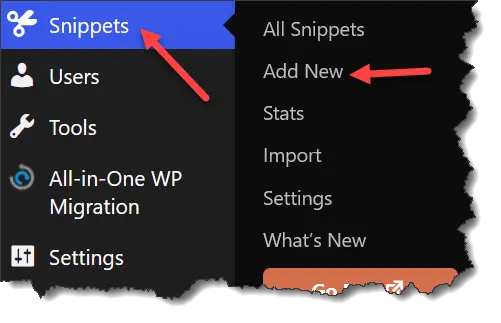
Hover over Code Snippets in your WordPress dashboard and click ‘Add New’.
Now give your snippet a name. I called mine ‘Scroll Mat Snippet’.
Then copy the PHP code I gave you (which you downloaded earlier) and paste it into the ‘Snippet Content’ area.
Don’t panic. I have a screenshot for you. It should all look like this…
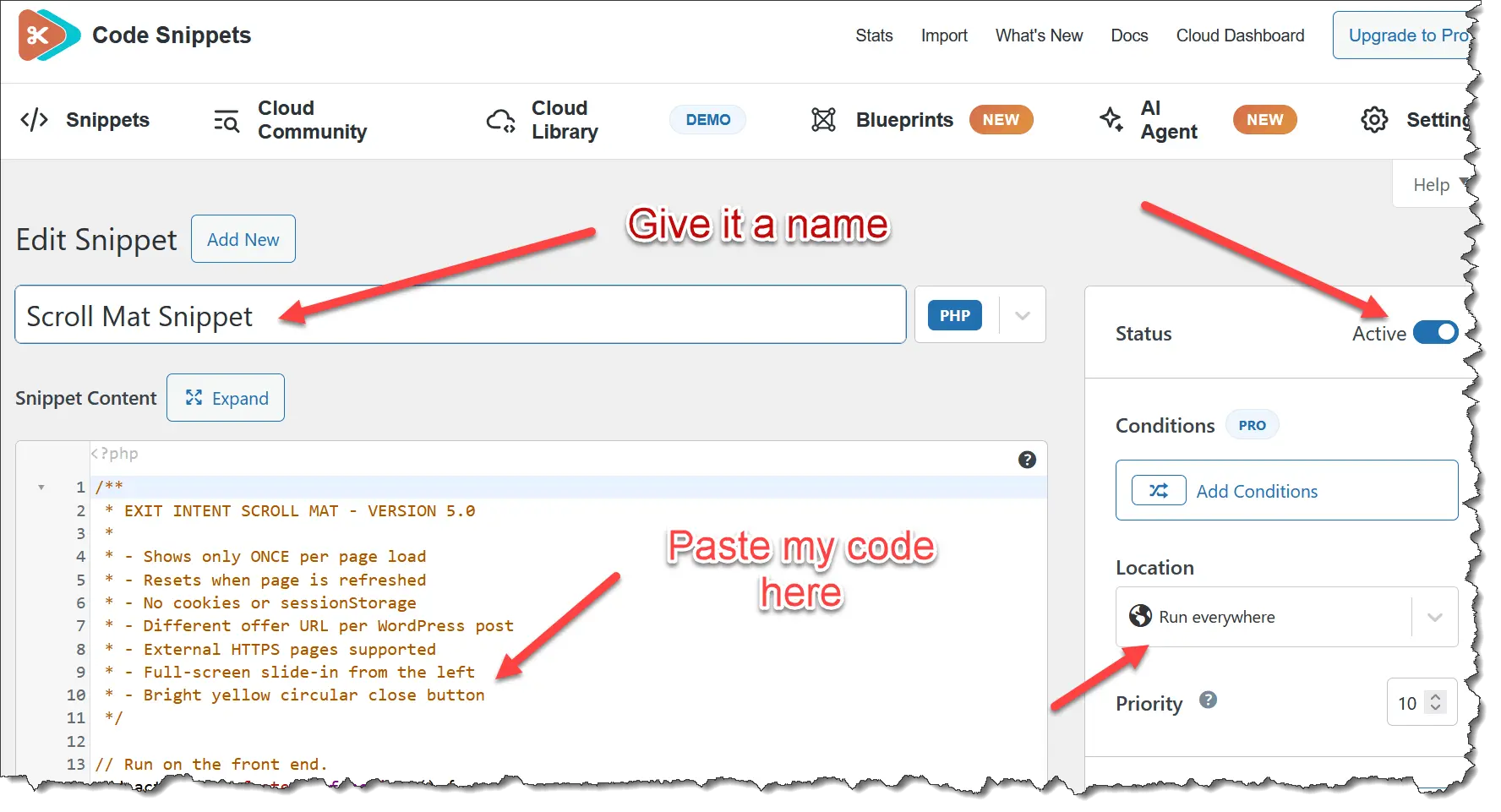
Make sure it says ‘Run Everywhere’ and that the snippet is active (see arrows above).
Then save your snippet. Well done. We’re halfway there.
Some of you probably haven’t done sh*t but read this – and that’s ok. You can do it later.
Step 5: Editing the Code (Don’t Panic!)
I know some of your sphincters are already tightening just from seeing the words ‘editing’ and ‘code’.

Relax… I’ve made it SUPER EASY.
There is only ONE small area where you need to edit the code. Do NOT get creative and mess up the rest. Only edit what I tell you to.
Ok… now look through the code (close to the top) until you see this…
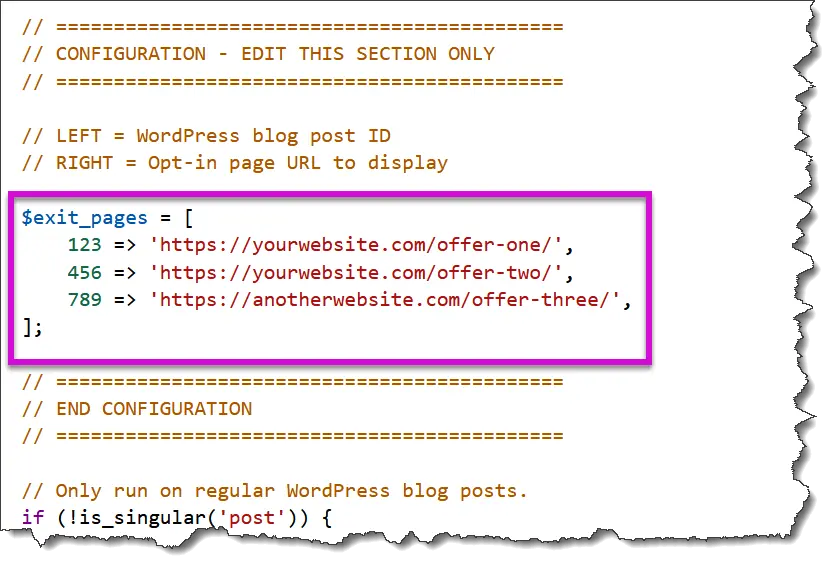
I’ll explain what these three ‘placeholder’ lines mean…
123 => ‘https://yourwebsite.com/offer-one/’
The number ‘123’ refers to your WordPress post’s ID.
To find your post ID, open the post in your WordPress editor and look at the URL in your browser’s address bar.
See that number after post=? That’s your post ID!
Once again, I have a screenshot for you…

This was the post ID (4544) for my Link 1 post earlier.
Remember, every post you want a scroll mat on needs its own post ID.
Next, we have the URL – https://yourwebsite.com/offer-one/
This URL is the page you want to display inside your scroll mat.
It could be an opt-in page or a sales page for an affiliate offer. You could even add an affiliate link here. (Refer to the exception below.)
Step 6: My Real-Life Example
Now let’s see how I did it for the links I asked you to click on in Step 1.
- First, I found the post IDs of the WordPress posts where I wanted my scroll mats to appear.
- Then I found the URLs of the pages I wanted to display inside those scroll mats.
Once that was done, I edited the code with the relevant details…
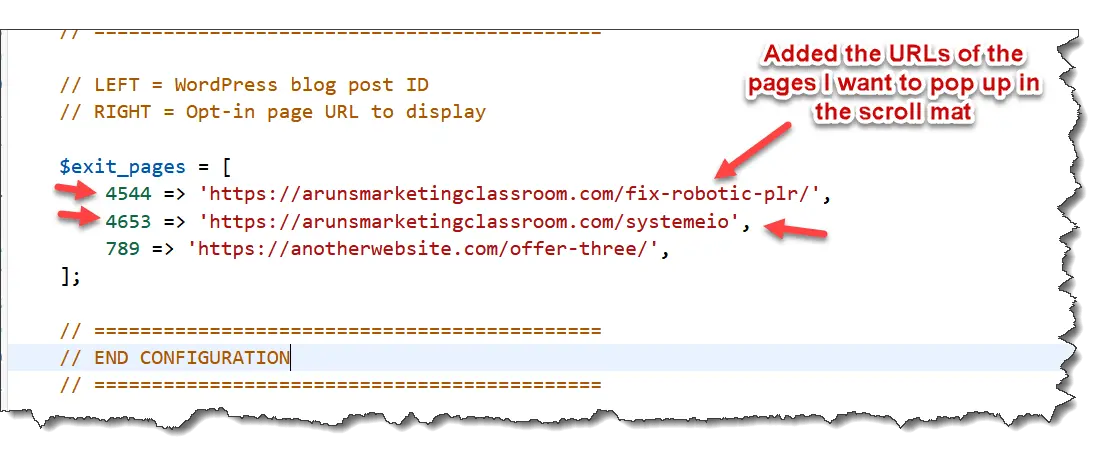
The two small arrows on the left are my post IDs – 4544 & 4653.
These are the only two lines which have been edited.
The third one is just a sample placeholder (789 => ‘https://anotherwebsite.com/offer-three/’) – you can delete it or leave it there. Up to you.
Once you’ve edited the code, save the snippet and you’re done!
Now, visit the post where you want your scroll mat to appear… and see if it slides in when you move your mouse towards the browser’s close button.
I’ll Do Another Example Just For Fun…
I have a WordPress post about how great my Systeme.io PLR bundle is.
It’s a pre-sell post with links to my sales page, where readers can buy the PLR bundle.
But GASP! What if these horrible folk need more exposure to an offer before they buy it?! And they don’t click on the links! DOUBLE GASP!
I’ll grab my WordPress post ID and the URL of my sales page… add a new line to my snippet… and save it.
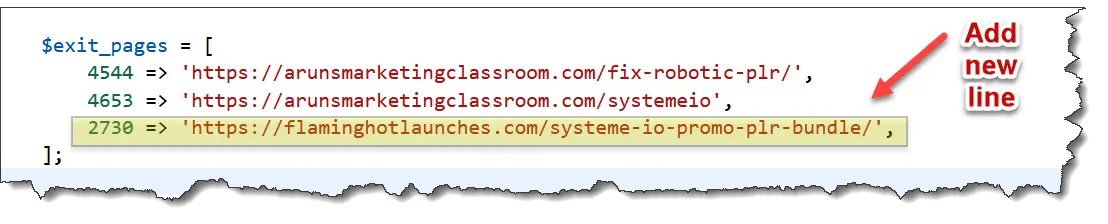
Now, when you visit my post and read it but can’t be arsed to click on the links and see my PLR…
Just as you’re about to close the page… BOOM! 💥💥💥
My scroll mat slides in smoother than me in a hot lady’s inbox – and you’ll still see the offer.
And who knows? That one final look at the offer might be all it takes to turn a departing visitor into a buyer.
So, just add new lines to the code for whatever posts you want scroll mats on, and it’ll do the job.
The Exception! – Not Every Website Will Work!
Some websites block their pages from being displayed inside an iframe. When that happens, the scroll mat still opens, but the page inside it won’t load.
This is why:
- Your PHP snippet creates a full-screen scroll mat that slides in from the left.
- Inside that scroll mat, an iframe loads the URL you’ve specified.
Think of an iframe as a window that displays one website inside another website.
For example, WarriorPlus, has security restrictions that prevent their pages from being embedded on another website.
So if you try adding a WarriorPlus affiliate link to my PHP code, the scroll mat will NOT display the page.
The scroll mat itself is working… but it can’t display the WarriorPlus page inside it. Get it? Good.
Thankfully, the Systeme.io page I tested allowed embedding, so I was able to display it in my scroll mat (with my affiliate link).
And that’s a wrap for this post.
One Final Point…
I’m not a coder. I know nuts about coding or PHP or why some men sit to pee.
So if this code doesn’t work on your site, I’m sorry, but I can’t help you here. You’ll have to troubleshoot it with ChatGPT.
It worked for me and two other people on my list – so there’s a good chance it’ll work for you too. Test it out and see.
If it works, congratulations! You’ve just saved yourself a few bucks.
If it doesn’t, go whisper some sweet nothings to ChatGPT. That’s how this whole thing started.